Essential Web Accessibility Rules Every Frontend Developer Should Know
Master the fundamental principles of web accessibility to create inclusive, user-friendly applications that work for everyone. Build websites that comply with WCAG guidelines while improving overall user experience.
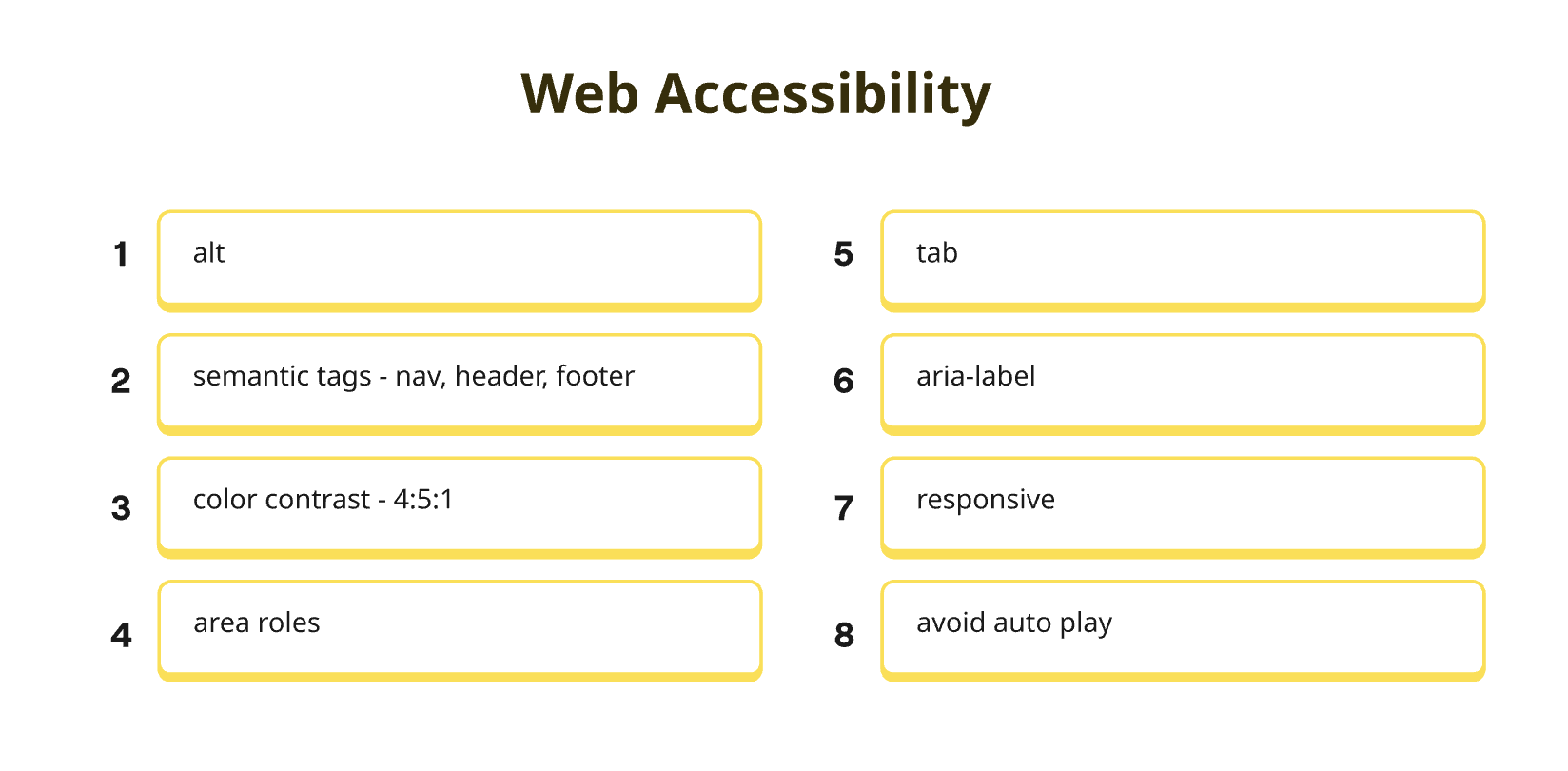
Why Web Accessibility Matters
Creating inclusive digital experiences benefits everyone, not just users with disabilities
Inclusive Design
Ensure your websites work for users with visual, auditory, motor, and cognitive disabilities, expanding your audience reach.
Legal Compliance
Meet ADA, Section 508, and WCAG requirements to avoid legal issues and ensure your site meets accessibility standards.
Better SEO & UX
Accessible websites often rank higher in search results and provide better user experience for all visitors.
10 Essential Accessibility Rules
Master these fundamental principles to build truly accessible web applications
Provide Text Alternatives for Non-Text Content
Text alternatives (alt text) for images, icons, and other non-text content ensure that screen readers can convey meaningful information to users with visual impairments. Alt text should be descriptive, concise, and provide context about the content's purpose.
Screen Reader Support
Enables screen readers to describe images and visual content to visually impaired users
SEO Benefits
Alt text improves search engine indexing and image search results
Slow Connections
Provides content description when images fail to load due to connectivity issues
Implementation Example:
<img src="logo.png" alt="Company Logo - Leading tech solutions provider" />Best Practices: Use descriptive alt text that conveys the image's purpose and context. Avoid redundant phrases like "image of" or "picture of". For decorative images, use empty alt attributes (alt="").
Ensure Keyboard Accessibility
All interactive elements must be accessible via keyboard navigation. Users should be able to navigate through your site using only the Tab, Enter, Arrow keys, and other standard keyboard controls without requiring a mouse.
Motor Disabilities
Essential for users who cannot use a mouse or pointing device
Power Users
Keyboard shortcuts improve efficiency for advanced users
Mobile Support
Works seamlessly with external keyboards on mobile devices
Implementation Example:
<button tabindex="0">Click Me</button>
<a href="#main-content" tabindex="1">Skip to Main Content</a>
<input type="text" tabindex="2" aria-label="Search" />
Key Points: Use proper tabindex values, ensure visible focus indicators, and implement logical tab order. Test your site using only keyboard navigation to identify accessibility barriers.
Use Semantic HTML
Semantic HTML elements provide meaningful structure and context to web pages, making it easier for assistive technologies to interpret and navigate content. Use proper heading hierarchy and landmark elements to create a logical document structure.
Document Structure
Creates clear content hierarchy for screen readers and other assistive tools
SEO Improvement
Search engines better understand and index semantically structured content
Clean Code
Semantic markup is more maintainable and easier to understand
Implementation Example:
<header>
<nav aria-label="Main navigation">
<ul>
<li><a href="#home">Home</a></li>
<li><a href="#about">About</a></li>
<li><a href="#contact">Contact</a></li>
</ul>
</nav>
</header>
<main>
<h1>Welcome to Our Website</h1>
<section aria-labelledby="features-heading">
<h2 id="features-heading">Our Features</h2>
<p>This is the main content area.</p>
</section>
</main>
<footer>
<p>© 2024 Company Name. All rights reserved.</p>
</footer>Semantic Elements: Use header, nav, main, section, article, aside, and footer elements appropriately. Maintain proper heading hierarchy (h1→h2→h3) and use landmarks to define page regions.
Maintain Sufficient Color Contrast
Ensure adequate color contrast between text and background colors to make content readable for users with visual impairments, including color blindness and low vision. WCAG AA requires a minimum contrast ratio of 4.5:1 for normal text and 3:1 for large text.
Low Vision Support
Helps users with visual impairments read content more easily
Bright Environments
Improves readability in bright lighting conditions and mobile devices
Better Design
High contrast creates more visually appealing and professional designs
Implementation Example:
/* WCAG AA Compliant - Good contrast (4.5:1 ratio) */
.text-primary {
  color: #212529; /* Dark gray text */
  background-color: #ffffff; /* White background */
}

.button-primary {
  color: #ffffff; /* White text */
  background-color: #0d6efd; /* Blue background */
}

/* WCAG AAA Compliant - Excellent contrast (7:1 ratio) */
.text-high-contrast {
  color: #000000; /* Black text */
  background-color: #ffffff; /* White background */
}

/* Poor contrast - Avoid this */
.text-poor {
  color: #999999; /* Light gray text */
  background-color: #ffffff; /* White background - Only 2.85:1 ratio */
}
Testing Tools: Use WebAIM Contrast Checker, Colour Contrast Analyser, or browser dev tools to verify contrast ratios. Aim for AAA compliance (7:1) when possible.
Implement ARIA Roles and Properties
Accessible Rich Internet Applications (ARIA) attributes enhance the accessibility of dynamic content and complex UI components. Use ARIA roles, properties, and states to provide additional context and functionality information to assistive technologies.
Dynamic Content
Makes interactive widgets and dynamic content accessible to screen readers
Context Information
Provides additional context and state information for complex UI elements
Custom Components
Enables accessibility for custom widgets that don't have semantic HTML equivalents
Implementation Example:
<!-- Button with ARIA attributes -->
<div role="button"
     aria-pressed="false"
     aria-label="Toggle menu visibility"
     tabindex="0"
     onKeyDown="handleKeyPress(event)"
     onClick="toggleMenu()">
  <i class="fas fa-bars" aria-hidden="true"></i>
  Menu
</div>

<!-- Form with ARIA labels -->
<form role="form" aria-labelledby="contact-form-title">
  <h2 id="contact-form-title">Contact Form</h2>
  <div>
    <label for="email">Email Address</label>
    <input type="email"
           id="email"
           aria-required="true"
           aria-describedby="email-error"
           aria-invalid="false" />
    <div id="email-error" role="alert" aria-live="polite"></div>
  </div>
</form>
ARIA Rules: Use ARIA to enhance, not replace, semantic HTML. Common attributes include aria-label, aria-describedby, aria-expanded, and role. Always test with screen readers.
Design for Screen Readers
Design with screen readers in mind by providing clear, descriptive labels and ensuring logical content flow. Test your website with popular screen readers like NVDA, JAWS, or VoiceOver to verify that all information is accessible and understandable.
Audio Navigation
Enables blind and low-vision users to navigate content through audio feedback
Logical Flow
Ensures content is presented in a logical, understandable sequence
Clear Labels
Provides descriptive labels and instructions for all interactive elements
Implementation Example:
<!-- Accessible form with proper labels -->
<form>
  <fieldset>
    <legend>Login Information</legend>

    <div class="form-group">
      <label for="username">Username (required)</label>
      <input type="text"
             id="username"
             name="username"
             aria-required="true"
             aria-describedby="username-help" />
      <div id="username-help" class="form-help">
        Enter your registered username
      </div>
    </div>

    <div class="form-group">
      <label for="password">Password (required)</label>
      <input type="password"
             id="password"
             name="password"
             aria-required="true"
             minlength="8" />
    </div>

    <button type="submit" aria-describedby="login-status">
      Login to Account
    </button>
    <div id="login-status" role="status" aria-live="polite"></div>
  </fieldset>
</form>
Screen Reader Testing: Use NVDA (free), test with actual screen reader users, and ensure logical tab order. Provide helpful form instructions and error messages.
Responsive and Mobile Accessibility
Ensure your website is accessible across all devices and screen sizes. Touch targets should meet minimum size requirements, text should be readable when zoomed to 200%, and all accessibility features should work on mobile devices.
Touch Accessibility
Adequate touch target sizes for users with motor impairments
Zoom Support
Content remains accessible and functional when zoomed up to 200%
Mobile First
Works seamlessly with mobile accessibility features and assistive technologies
Implementation Example:
/* Accessible responsive design */
.container {
  width: 100%;
  max-width: 1200px;
  margin: 0 auto;
  padding: 20px;
}

/* Touch targets - minimum 44px x 44px */
.btn, .nav-link, input[type="button"] {
  min-height: 44px;
  min-width: 44px;
  padding: 12px 16px;
  margin: 4px;
}

/* Focus indicators */
.btn:focus, input:focus, a:focus {
  outline: 3px solid #005fcc;
  outline-offset: 2px;
}

/* Mobile accessibility */
@media (max-width: 768px) {
  .container {
    padding: 16px;
  }

  /* Larger touch targets on mobile */
  .btn, .nav-link {
    min-height: 48px;
    font-size: 16px; /* Prevents zoom on iOS */
  }

  /* Skip navigation improvement */
  .skip-link {
    position: absolute;
    top: -40px;
    left: 6px;
    background: #000;
    color: #fff;
    padding: 8px;
    z-index: 1000;
    text-decoration: none;
    border-radius: 0 0 4px 4px;
  }

  .skip-link:focus {
    top: 0;
  }
}
Mobile Guidelines: Minimum 44px touch targets, avoid horizontal scrolling, test with mobile screen readers, and ensure proper viewport configuration.
Provide Captions and Transcripts for Multimedia
All video and audio content must include captions, transcripts, or audio descriptions to be accessible to users with hearing impairments. This also benefits users in noisy environments or those who prefer reading over listening.
Hearing Impaired
Provides alternative access to audio content for deaf and hard-of-hearing users
Language Support
Helps non-native speakers and improves comprehension for all users
Silent Viewing
Enables content consumption in quiet environments or when audio is unavailable
Implementation Example:
<!-- Accessible video with captions and transcript -->
<div class="video-container">
  <video controls
         width="100%"
         preload="metadata"
         aria-labelledby="video-title"
         aria-describedby="video-description">
    <source src="accessibility-tutorial.mp4" type="video/mp4">
    <source src="accessibility-tutorial.webm" type="video/webm">
    <track kind="captions"
           src="captions-en.vtt"
           srclang="en"
           label="English Captions"
           default>
    <track kind="descriptions"
           src="descriptions-en.vtt"
           srclang="en"
           label="English Audio Descriptions">
    <p>Your browser doesn't support HTML5 video.
       <a href="accessibility-tutorial.mp4">Download the video</a> instead.
    </p>
  </video>

  <h3 id="video-title">Web Accessibility Fundamentals</h3>
  <p id="video-description">
    A comprehensive guide to implementing accessibility features in web development.
  </p>

  <div class="video-resources">
    <a href="transcript.pdf"
       class="btn btn-outline"
       download
       aria-describedby="transcript-info">
      <i class="fas fa-file-alt" aria-hidden="true"></i>
      Download Full Transcript (PDF, 125KB)
    </a>
    <p id="transcript-info" class="sr-only">
      Complete text transcript of the accessibility tutorial video
    </p>
  </div>
</div>
Caption Requirements: Provide accurate captions, audio descriptions for visual content, downloadable transcripts, and multiple format options (VTT, SRT).
Test with Real Users
Conduct usability testing with actual users who have disabilities to gather authentic feedback about your website's accessibility. Real user testing reveals issues that automated tools may miss and provides valuable insights for improvement.
Real Feedback
Get authentic insights from people who actually use assistive technologies
Find Hidden Issues
Discover accessibility problems that automated testing tools cannot detect
Build Empathy
Develop deeper understanding of user needs and accessibility challenges
Testing Approach Example:
// Accessibility testing checklist for user research
const accessibilityTestingChecklist = {
  keyboardNavigation: [
    "Can I navigate the entire site using only Tab, Shift+Tab, Enter, and Arrow keys?",
    "Are focus indicators clearly visible on all interactive elements?",
    "Does the tab order follow a logical sequence?",
    "Can I activate all interactive elements using keyboard only?"
  ],

  screenReaderTesting: [
    "Does the page structure make sense when read by a screen reader?",
    "Are headings properly nested (h1, h2, h3, etc.)?",
    "Do form fields have proper labels and instructions?",
    "Are error messages clearly announced?"
  ],

  visualTesting: [
    "Can I still use the site when zoomed to 200%?",
    "Is text readable against background colors?",
    "Do images have meaningful alt text?",
    "Are interactive elements large enough to click/tap easily?"
  ]
};

// Example user feedback from accessibility testing
const realUserFeedback = [
  "Navigation menu is confusing with NVDA - consider adding landmarks",
  "Some buttons are too small for my motor disabilities",
  "Color-only error indicators are hard for me to distinguish",
  "Auto-playing video is distracting while using screen reader"
];
Testing Strategy: Recruit diverse users, create realistic scenarios, observe without interrupting, and implement feedback systematically. Consider partnering with disability organizations.
Stay Updated with Accessibility Standards
Web accessibility standards evolve continuously. Stay current with WCAG guidelines, browser updates, assistive technology changes, and emerging best practices. Make accessibility an integral part of your development workflow.
Accessibility Maintenance Checklist
Standards & Guidelines
- Follow WCAG 2.1 AA guidelines (minimum)
- Aim for WCAG 2.1 AAA when possible
- Stay updated with WCAG 3.0 development
- Monitor country-specific accessibility laws
Testing Tools
- Use WAVE, Axe, or Lighthouse for automated testing
- Test with multiple screen readers
- Validate color contrast ratios
- Check keyboard navigation regularly
Continuous Learning
- Attend accessibility conferences and webinars
- Participate in accessibility communities
- Take accessibility certification courses
- Read accessibility blogs and research
Regular Audits
- Conduct monthly accessibility audits
- Update content for accessibility
- Train team members on accessibility
- Document accessibility decisions
Key Takeaways
Building accessible web applications is an ongoing commitment to inclusive design
Accessibility is Universal Design
When you design for accessibility, you create better experiences for everyone. Features like captions, keyboard navigation, and high contrast benefit all users, not just those with disabilities.
Start Early, Test Often
Integrate accessibility considerations from the beginning of your development process. Regular testing with automated tools and real users helps catch issues before they become expensive to fix.
Legal and Ethical Responsibility
Web accessibility is both a legal requirement in many jurisdictions and an ethical obligation. Creating inclusive digital experiences should be a core value for all developers and organizations.
Final Thoughts
Web accessibility is not just about compliance—it's about creating a more inclusive internet where everyone can participate fully in digital experiences. By implementing these 10 essential rules, you're not only building better websites but also contributing to a more accessible web for all.
Remember: Accessibility is an ongoing journey, not a destination. Continue learning, testing, and improving your accessibility practices to create truly inclusive digital experiences.